

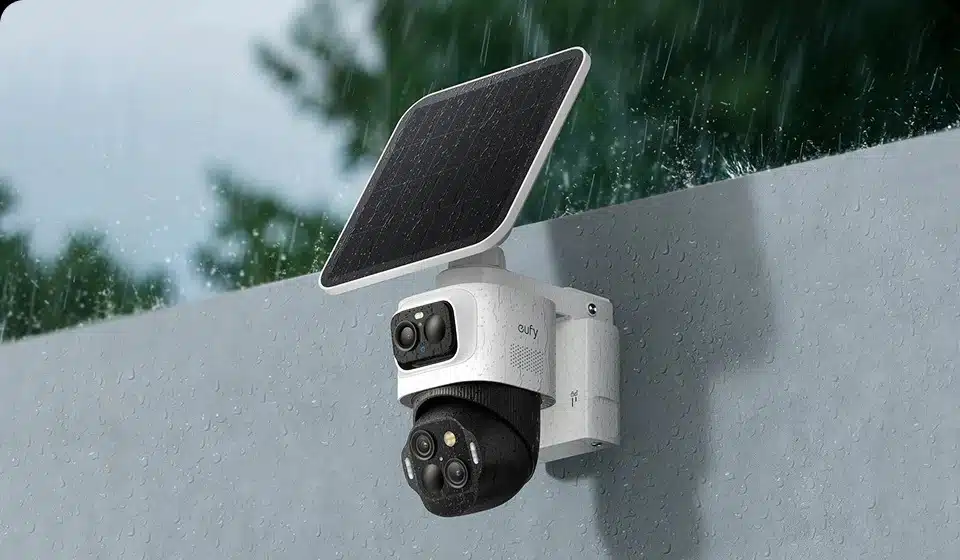
A 10–15 minute check before storm season can prevent the most common outdoor camera failures: loose mounts that shift your viewing angle in high winds, pollen or spiderwebs that blur night vision, solar panels blocked by debris, and weatherproof seals that let moisture in after heavy rain. This guide covers what to inspect on your home security cameras outdoor before the first major storm hits, and what to recheck once it passes. You’ll need a microfiber cloth, a flashlight, a screwdriver, clean gloves, and your phone with the eufy app open.
How to Inspect the Mount and Camera Angle
Do this inspection 1 to 2 days before a storm is forecast. The mount is the right place to start: it takes under five minutes and covers the failure point most likely to cause problems when winds pick up.
Check the Mount for Loose Bolts and Signs of Rust
Push gently against the camera housing with your hand. Any wobble, even a slight one, means the mount bolts need retightening. On metal brackets, look for rust spots or pitting at the bolt heads. Surface oxidation can progress quickly during a wet season and weaken the hold. Plastic mounts fail differently. Press gently along the housing edges to feel for brittleness, and look for hairline cracks or discoloration where years of UV exposure and temperature cycling have started to break the material down. A retightened bolt costs nothing. A mount that fails in a storm can pull a camera off the wall entirely. If you find rust that’s more than surface-level, replace the affected hardware before the season starts rather than after.
Verify the Camera Is Still Pointing Where You Intended
Open the eufy app and pull up the live view for each camera. Compare what you see against the coverage area you set up during installation: front door, driveway edge, side gate, or wherever you positioned it. The most common drift pattern is a slight rotation toward a neighboring fence or skyward tilt. Both are easy to miss until you’re reviewing footage after an incident.
If the angle has shifted, physically reposition the camera, then go back into the eufy app and update the Activity Zone to match the new frame. An Activity Zone calibrated to an old camera angle will trigger alerts from the wrong part of the frame during a storm, pulling in false alarms from the street, a neighbor’s yard, or open sky right when you need notifications to mean something.
One eufy community member reported that even after tightening the mount as much as possible, their camera still drooped in high wind, a problem that often goes unnoticed until the footage no longer covers the intended area. Checking camera angle after any significant wind event takes less than a minute in the app and catches this before it becomes a blind spot.
How to Clean the Lens and Inspect the Housing
This step is most relevant in spring (pollen season runs roughly April through June across much of the US) and late summer into fall, when spiders are most active.
Remove Spiderwebs, Pollen, and Dust from the Lens Cover
Spider webs collect on cameras regularly, particularly near indicator lights or along housing edges where insects gather. The problem isn’t visible from the ground. A single thread across the lens reads in night vision as a wide white smear, similar to fog, and adjusting any camera setting won’t clear it. Use a bulb blower or compressed air first to clear loose debris, then wipe in small circles with a microfiber cloth.
Do not use paper towels, facial tissue, or rough cloth. These materials can leave fine scratches on the polycarbonate lens cover, and those scratches scatter light in a way that permanently degrades night-vision quality.
During spring checks, look for a fine yellow or white powder coating on the lens cover: that’s pollen. A light layer diffuses the image and shifts the white balance in color night vision modes. While you’re wiping, check for any crack in the lens cover itself. A crack lets rainwater reach the inside of the lens module, where it condenses and creates a fogging effect that no external cleaning will fix.
Check the Housing for Cracks, Gaps, or Compromised Seals
Examine the areas where cables enter the housing, where the SD card slot cover sits, and at any USB charging port. Press gently on rubber port covers to confirm they seat fully. A cover that springs back without seating is no longer creating a seal.
IP66 means protection against powerful water jets from any direction. IP67 means immersion to one meter for 30 minutes. [Source: IEC 60529, en.wikipedia.org/wiki/IP_code] What IP ratings do not account for is physical damage: a hairline crack in the housing, a seal that has dried out and shrunk over two or three seasons, or a port cover that’s been opened and not fully reseated. If you find damage, note it before the season starts rather than discovering it mid-storm when the inside of the camera is already wet.
How to Check the Power Supply Before a Major Storm
Power failure is the second most common reason cameras go offline during storms, behind network outages. Checking the power source now takes 2 minutes in the app and 5 to 10 minutes outside.
Checking Solar Panel Condition and Battery Level on Solar Cameras
Solar panel efficiency drops in direct proportion to what’s on the surface. Leaf litter in fall and pollen in spring do the most damage to output. In colder regions, frost is worth checking as well. Wipe the panel surface with a damp cloth and let it dry. Once it’s dry, check whether the cable between the panel and camera is fully seated. A loose connector here tends to cause intermittent charging gaps rather than a clean failure, so it can go unnoticed for weeks before showing up as unexpected battery drain.
In the eufy app, go to Settings, select your camera, and check the power status. A battery level above 60% means you have a comfortable buffer going into a storm. A level below 30% is worth addressing before the storm hits: depending on your model’s design, you can either bring the camera indoors to charge or swap in a fully charged replacement battery.
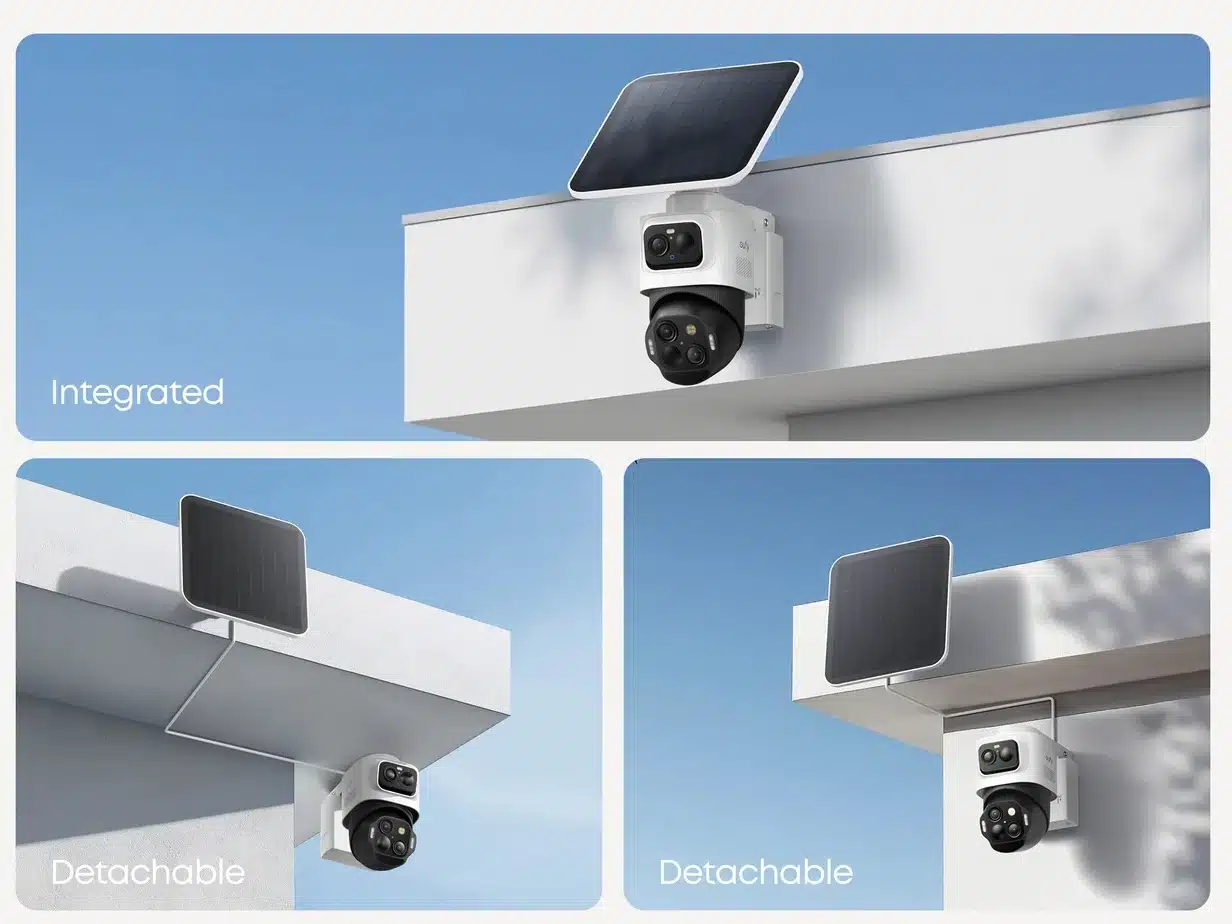
The eufyCam S4’s SolarPlus™ 2.0 system uses a detachable 5.5W panel, so you can clean it indoors and reattach without moving the camera body.
Tighten your Activity Zone to exclude tree branches and tall grass that move in wind, which are common triggers for unnecessary recordings that drain the battery without capturing anything useful.
Checking Cables, Connectors, and Weatherproof Seals on Wired Cameras
Walk the full cable run from the camera to its power source. Look at each cable clip or staple: clips that have loosened will let the cable swing freely in high wind, and repeated flexing at the connector point is how wired camera connections fail. Re-secure any loose clips before the storm.
At the power connector, whether that’s a weatherproof USB-C or a PoE jack, inspect the rubber seal around the connection. A greenish tint at a metal connector means oxidation has started. Clean it with a dry cloth and make sure the connection is fully seated. At any point where the cable passes through an exterior wall, check that the sealant around the penetration is intact.
The Wired Cam C31 comes with a sealed weatherproof charging cable and an IP66-certified housing. The seals cover the charging ports, SD card slot, and cable exits. IP ratings are tested on new units. A cable that’s been compressed under a clip for two years or a seal that’s been exposed to UV and temperature extremes since installation isn’t guaranteed to perform at the same level as day one. Wired cameras record continuously in storm season regardless of cloud cover. That holds as long as the connection and seals stay intact.
How to Use the eufy App to Verify Everything Is Working
The eufy app gives you a 5-minute verification covering what a physical inspection can’t: whether the camera is recording cleanly and whether alerts will reach you.
Work through these steps in order for each camera:
- Open Live View. Confirm the image is clear, properly framed, and free of blur, tint, or obstructions. If it looks off, you’ve caught an issue before the storm rather than discovering missing footage afterward.
- Review the last 24 hours of recorded footage. Look for black frames, gaps longer than a few seconds, or periods with no motion clips. Long gaps with no recordings usually mean a sensor or connection issue.
- Check your Activity Zones. If you repositioned a camera during the physical inspection, the Activity Zone needs to match the new frame. An outdated zone means you’ll either miss events in the area you care about or get alerts for areas you don’t.
- Test motion notifications. Walk in front of the camera and confirm your phone receives a motion notification promptly. If you don’t get one, check your app notification settings before assuming the camera is the problem.
- Check local storage capacity. Confirm the SD card has enough space to cover the storm duration. If storage is running low, clear older clips or swap in a larger card before you need the recording space.
- For HomeBase™ S380 users, check the hub status. Confirm the HomeBase indicator light shows a normal status and no network disconnect alert. If it’s showing an error before the storm, that’s the time to address it.
Network connectivity is the one variable that physical checks and app verification can’t reach directly. If the router sits near an exterior wall or window, moisture or a power surge during a storm can take it offline regardless of camera condition. Before a storm, confirm the router is in a covered, ventilated location. For HomeBase S380 setups, the network indicator in step 6 gives you a real-time read on hub connectivity. For eufyCam S4 setups, a Wi-Fi dropout doesn’t create a gap in coverage: the camera stores footage on its 32GB onboard chip and continues recording locally regardless of Wi-Fi status.
What to Check Again After the Storm
The window right after a storm passes is the second half of the maintenance loop. A 5-minute app check combined with a quick physical walk covers the most likely damage scenarios.
Check Item | What to Look For |
Mount and angle | Has the viewing area shifted? Are any bolts visibly loose or displaced? |
Lens and housing | Water streaks, mud, leaf debris on the lens cover. Any new cracks visible on the housing. |
Solar panel | Surface debris or leaves. Is the panel-to-camera connection cable still seated? |
Wired camera cables | Have any cable clips shifted or pulled loose from the wall? Are connectors showing any moisture at the seal? |
Footage review (app) | Are there gaps in recording during the storm window? Any black frames or extended outages? |
Notifications (app) | Is the camera still sending motion alerts normally post-storm? |
Activity Zones | If the camera moved, do the zones still match the current frame? |
After a storm, the first sign of a problem usually turns up in the footage. A gap in recording shows when the camera went offline. If the frame looks different from what you set, the mount likely shifted during the storm. Physical inspection catches the rest: a cable clip that pulled loose, a panel now sitting in shadow, a housing crack that wasn’t there before. Either way, getting to it within 24 hours keeps the fix manageable before the next weather event.
According to NOAA National Weather Service data, the Atlantic hurricane season runs June through November, and separate severe thunderstorm seasons affect the Midwest and Southeast from spring through early fall, meaning many regions face multiple storm risk windows per year, not one. [Source: NOAA National Weather Service] Running the pre-storm checklist once per season and the post-storm review within 24 hours of each significant event keeps your cameras functional.
Cameras Designed to Hold Up Through Storm Season
For most setups, the gap shows up in access rather than hardware: a solar panel positioned where it’s hard to reach for cleaning, or a battery that requires waiting through a charge cycle rather than swapping it out before the storm window closes.
The eufyCam S4 is designed with storm-season maintenance in mind at each of those weak points. The solar panel detaches for cleaning without pulling the camera off the wall, and the quick-swap battery lets you start storm season at full charge regardless of where the current level sits. Because it runs independently without a HomeBase, local recordings continue even if the network goes down mid-storm. IP65 weatherproofing covers rain and wind-driven water exposure.
Fixed positions with reliable sun exposure are where the eufyCam S3 Pro fits well. It uses the same SolarPlus™ 2.0 system as the S4, with the option to add a second external panel for spots with partial shade. MaxColor Vision™ holds full-color footage in low-light and hazy conditions, including the foggy air that often follows heavy rain. It requires a HomeBase™ S380, which suits setups running multiple cameras from a central hub.
For entry points where wiring is already in place, like a front porch or garage bay, the Wired Cam C31 removes power management from the maintenance equation entirely. Before a storm, there is no battery to check and no solar panel to clean. IP66-rated sealed ports handle rain and dust, and dual external antennas keep the connection stable over longer distances. The annual maintenance focus shifts to cable clips and connector seals.
Conclusion
When cameras fail during a storm, the cause is almost always a maintenance gap that predated the weather: a mount that was tight at installation but never rechecked, or a solar panel that’s been accumulating pollen since April. The inspection process in this guide takes 10 to 15 minutes before a storm and about 5 minutes in the app afterward, and it covers all of those systematically.
Start with the eufy app’s Live View before you pick up a screwdriver. If every camera shows a clean, properly angled frame and the last 24 hours of recordings look normal, you’re already well prepared for what’s ahead. If something is off, the physical steps in this guide give you a clear sequence to work through before the weather changes.
If you’re also evaluating whether your current setup is ready for storm season, explore the full range of eufy outdoor security cameras to see which power and weatherproofing options fit your installation.